
CorelDraw Course Content

CorelDraw is a Vector Graphics Software, allowing the user to produce World Class Illustrations with 16.7 million colors. CorelDraw is favored by architects / interior designers because of the presence of TEXTURES AND GRAPHICS FOR 3D VISUALIZATION which allows the user to give a realistic look to their interior or architectural designs .
The program is looked as both a "stand-alone" application and also as a partnering software with AutoCAD.
Online CorelDraw Course Content
Phase I
Phase II
Phase III
Phase IV
Phase I
- How to Start the CorelDraw program
- Introduction to the CorelDRAW program, Menu bar & Drawing Toolbox
- Overview of Drawing tools
- Freehand Tool
- Rectangle Tool
- Ellipse Tool
- Polygon, Spiral & Graph Paper Tools
Spiral- You Can Draw Two Types Of Spirals: Symmetrical And Logarithmic - Editing the object
- Deleting, Moving, Scaling, Rotating & Skewing
- Shape Tool
- Used To Give Shape(Curve) To A Line. - Knife Tool
- Used To Cut An Object From Node To Node - Erase Tool
- Smudge Tool
- Smudging Lets You Distort An Object By Dragging The Outline Of An Object Or A Group Of Objects - Roughen Tool
- The Roughening Effect Lets You Apply A Jagged Or Spiked Edge To Objects (A Generic Term For Any Item You Create Or Place In A Drawing.Objects Include Line,Shapes,Graphic And Text) , Including Lines, Curves, And Text - How to combine two lines
- Learn to use Transformation (Mirror) of object and combine it
- Lets You Rotate And Create Mirror Images Of Objects.Mirroring An Object Flips It From Left To Right Or Top To Bottom. - Learn to use Transformation (Rotation), to make a flower
- Live Demos
- Live Demo- How to make a Heart
- Live Demo- How to make a Plane
- Live Demo- How to make a Hand
- Live Demo- How to make a Heartleaf
- Exercise 1(After learning the above topics you will learn to do Exercise 1)

Phase II
- Differentiate Mode of Color
- Color Fill Tool :-
- Fill Color
- Fountain Fill
- A Fountain Fill Is A Smooth Progression Of Two Or More Colors That Adds Depth To An Object(Gives Shades Of Colors) - Pattern Fill
- You Can Fill Objects With Two-Color, Full-Color, Or Bitmap Pattern Fills.


- Texture Fill
- A Texture Fill Is A Randomly Generated Fill That You Can Use To Give Your Objects A Natural Appearance. - PostScript Fill
- No Fill
- Color Docker Window
- Outline Tool :-
- Outline Pen
- Outline Color
- No Outline
- Outline Thickness
- Exercise 2 (After learning the above topics you will learn to do Exercise 2)

- Arrange Menu
- Order
- You Can Change The Stacking Order Of Objects On A Layer By Sending Objects To The Front Or Back, Or Behind Or In Front Of Other Objects. - Group - When You Group Two Or More Objects, They Are Treated As A Single Unit.
- Convert to curve
- Lets You Shape Objects By Manipulating Their Nodes(The Square Point At Each End Of A Line Or Curve Segment) And Segments(The Line Or Curve Between Nodes In A Curve Objects) - Convert Outline to object
- Edit Menu
- Delete
- Symbol
- Duplicate
- Clone
- Copy Properties From
- View Menu
- Simple Wireframe
- Simple Wireframe — Displays An Outline Of The Drawing By Hiding Fills, Extrusions, Contours, Drop Shadows, And Intermediate Blend Shapes; Also Displays The Bitmaps In Monochrome. It Lets You Quickly Preview Basic Elements In A Drawing. - Wireframe
Wireframe — Displays Simple Wireframe In Addition To Intermediate Blend Shapes. - Normal
Normal — Displays A Drawing Without PostScript Fills Or High-Resolution Bitmaps. Refreshes And Opens Slightly Faster Than Enhanced View. - Enhanced
Enhanced — Displays A Drawing With PostScript Fills, High-Resolution Bitmaps, And Anti-Aliased Vector Graphics. - Exercise 3 (After learning the above topics you will learn to do Exercise 3)

Phase III
- Interactive Tool
- Lets You Create Blends, Such As Straight-Line Blends, Blends Along A Path((The Basic Components From Which Objects Are Constructed) , And Compound Blends. - Interactive Contour Tool
- You Can Contour (An Effect Created By Adding Evenly Spaced Concentric Shapes Inside Or Outside The Borders Of An Object) An Object To Create A Series Of Concentric Lines That Progress To The Inside Or Outside Of The Object. - Interactive Distortion Tool
- Interactive Envelope Tool
- It Gives Curve Effects - Interactive Extrude Tool
- It Gives 3D Effect. - Exercise 4 (After learning the above topics you will learn to do Exercise 4)

- Interactive Extrude Tool
- Interactive Drop Shadow
- Drop Shadows Simulate Light Falling On An Object From One Of Five Particular Perspectives: Flat, Right, Left, Bottom, And Top. - Interactive Fill Tool
- Interactive Mesh Fill
- A Type Of Fill That Lets You Add Patches Of Color To The Inside Of A Selected Object - Interactive Transperancy
- Excercise 5 (After learning the above topics you will learn to do Exercise 5)

- Eyedropper Tool & Paintbucket Tool
- Artistic Media Tool
- View Menu
- Designing an Advertisement layout.
- Designing an Greeting Card with proper measurements & Color effects.
Phase IV
- Layout Menu
- Text Menu
- Exercise 6 (After learning the above topics you will learn to do Exercise 6)

- Arrange Menu
- Shaping - Weld, Trim, Intersect,Simplify, Front Minus Back, Back Minus Front.
- Close path
- Convert outline to object
- Effects Menu
- Lens
- Powerclip
- Add Perspective
- Rollover
- Rollovers Are Interactive Objects That Change In Appearance When You Click Or Point To Them. You Can Create Rollovers Using Objects. - Exercise 7 (After learning the above topics you will learn to do Exercise 7)

Phase V
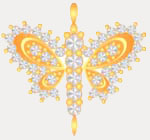
- Miscellaneous design of Pendants using different settings
- Live demo of Pendant 1
Phase VI
- Miscellaneous design of Earings using different settings
- Live demo of Earing 1

Phase VII
- Miscellaneous designs of Bracelets using different settings
- Live demo 1
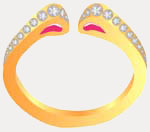
- Live demo 2

Phase VIII
- Miscellaneous design of Bangle using different settings

- Based on the above demos, please make the following exercises

Phase IX
- Live Demo 1 - Jewellery set including Necklace, Earings, Ring

- Live Demo 2 - Necklace
